Having completed part 1 and part 2 of the tutorial you should now have a fancy green screen with a little red wizard that can wander all over the place. Now we’ll start getting into a bit more of the nitty gritty and work on adding in some scenery (for now we’ll just add some admittedly pretty pathetic looking bricks  ) and providing some collision detection logic to make it so our hero cannot walk through the bricks that we add. Also, since the code is going to start getting a bit more complex, we’ll follow general practices and separate things out so that each function performs one main task instead of cramming it all together.
When you’re working with games in JavaScript you have to carefully weigh the cost of every action you perform in your game loop. Since we opted to clear out the entire canvas in each iteration, adding our static objects (scenery) to the mainCanvas object would force us to redraw all of the bricks each loop. Obviously, we don’t want to do that so we’re going to adjust our main HTML page to have two canvases that are stacked on top of each other (using CSS positioning and z-index). Here’s what our new HTML file looks like:
1 2 3 4 5 6 7 8 9 10 11 12 13 14 15 16 17 18 19 20 21 22 23 24 25 26 27 28 29 30 31 32 33 34 35 | <!DOCTYPE HTML> <html> <head> <title>JavaScript and HTML5 - Simple Game Creation: Part 1</title> <meta http-equiv="content-type" content="text/html; charset=UTF-8" /> <script type="text/javascript" src="scripts/jquery-1.6.4.min.js"></script> <script type="text/javascript" src="scripts/SimpleGame_3.js?ver=10_16_2011"></script> <style type="text/css"> #canvasWrapper { position:relative; } #canvasWrapper canvas { position:absolute; top:0; left:0; } #baseCanvas { z-index:1; } #mainCanvas { z-index:2; } </style> </head> <body style="margin:0;"> <div id="canvasWrapper"> <canvas id="baseCanvas">Your browser does not support HTML5</canvas> <canvas id="mainCanvas">Your browser does not support HTML5</canvas> </div> </body> </html> |
Nothing really fancy here, we added a new canvas with an id of “baseCanvas” and then wrapped both canvas elements in a div wrapper. The style tag handles adjusting the CSS on the canvas elements so they are stacked on top of each other with the baseCanvas (the one where we will draw our static scenery) on the bottom of the stack. The clever among you probably already realized that we’re going to have to make changes to our gameLoop even though we’ve stacked our canvases this way. We no longer are going to want to fill the mainCanvas with the green color because that would hide all of the scenery on the base canvas. Instead we are going to adjust our gameLoop code so that it just completely empties the mainCanvas each iteration through the gameLoop.
We’ll change this
1 2 3 4 | // tell the context we are going to use a dark green fill color context.fillStyle = "#004400"; // fill the entire canvas with the color context.fillRect(0, 0, gameW, gameH); |
to this
1 2 | // clear the entire canvas context.clearRect(0, 0, gameW, gameH); |
We’ll also need to adjust how we initially set up our canvas object in the
1 | $(window).load(function() |
so we’ll use this opportunity to pull things out into a separate function. Above the
1 | $(window).load(function() |
add a new function definition named “initCanvas” and then delete all of the canvas and context references from the
1 | $(window).load(function() |
. Before we fill out the initCanvas function we need to add in two new variables at the top of our JavaScript file so we can access our baseCanvas and the context related to it
1 2 | var baseCanvas; var baseContext; |
Once those are in place, here’s the code for the new initCanvas function:
1 2 3 4 5 6 7 8 9 10 11 12 13 14 15 16 17 18 19 20 21 22 23 24 25 26 27 | function initCanvas() { // retrieve a reference to the canvas object canvas = document.getElementById("mainCanvas"); // create a context object from our canvas context = canvas.getContext("2d"); // retrieve a reference to the base canvas object baseCanvas = document.getElementById("baseCanvas"); // create a context object from our baseCanvas baseContext = baseCanvas.getContext("2d"); // set the width and height of the canvas canvas.width = gameW; canvas.height = gameH; // set the width and height of the baseCanvas baseCanvas.width = gameW; baseCanvas.height = gameH; // we no longer fill the main canvas with anything, we just let the // base canvas show through // tell the baseContext we are going to use a dark green fill color baseContext.fillStyle = "#004400"; // fill the entire baseContext with the color baseContext.fillRect(0, 0, gameW, gameH); } |
You can see we are getting our references set up for the baseCanvas and the context related to it and filling it with our dark green color. Since the baseCanvas is now going to contain the background and the scenery we no longer have to worry about filling our the mainCanvas other than setting its width and height. Running the code at this point should give you a result that looks exactly the same as what we had at the end of part 2.
While we’re on the cleaning up code kick, let’s go ahead and move the logic that instantiated our hero out of the
1 | $(window).load(function() |
and put it into an initHero function. The new initHero function and the resulting
1 | $(window).load(function() |
should look like the following:
1 2 3 4 5 6 7 8 9 10 11 12 13 14 15 16 17 18 19 20 21 22 | function initHero() { // instantiate a heroObject hero = new heroObject(); // set it's image to the proper src URL hero.image.src = "images/Mage_Sprite.png"; // once the image has completed loading, render it to the screen hero.image.onload = function() { hero.render(); }; } $(window).load(function() { initCanvas(); initHero(); lastUpdate = Date.now(); // call the gameLoop as fast as possible setInterval(gameLoop, 1); }); |
There we go, the annoying organization bits are out of the way we are free to get started on the actual new functionality. We need to add a few variables to the top of the JavaScript file to accommodate the changes we are going to make: we want a variable to tell the game how many rocks to load into the scene, an array to hold all of the rock information and, since we’re going to be reusing the same image object multiple times, a base image object for the rock.
1 2 3 4 5 6 | // variable to determine how many rocks to draw into the scene var numRocks = 50; // array to hold all of the rock objects we have var rocks = new Array(); // variable to hold our base rock image var baseRock = null; |
Before we start working with those variables let’s define what our rock object actually will be. We’ll do this in a very similar fashion to how we did our heroObject except much more simply since the rocks don’t need to move/update. Because this same object could be used for any static object you add to your game we’ll be calling it “staticObject” (I know, I’m very clever). We need to know the width and height of the object, its x and y coordinates, the image to use for the object and then have the ability to render it to the baseContext.
1 2 3 4 5 6 7 8 9 10 11 12 13 14 15 16 17 18 19 20 21 22 23 | function staticObject() { // the width and height of the sprites for our static objects // I'm using 32x32 as the default grid size this.width = 32; this.height = 32; // Place it at a random spot on the screen to start this.x = this.width * Math.floor(Math.random() * ((gameW - this.width * 2) / this.width)) + this.width; this.y = this.height * Math.floor(Math.random() * ((gameH - this.height * 2) / this.height)) + this.height; // What image are we using for the object this.image; this.render = function() { // drawImage takes for parameters: // the image to draw // the x and y coordinates to use from the source image // the width and height to use from the source image // the x and y coordinates to draw it to on the canvas // the width and height to draw it into on the canvas baseContext.drawImage(this.image, 0, 0, this.width, this.height, this.x, this.y, this.width, this.height); }; }; |
You can see that it is pretty much a copy and paste of the code we used for our heroObject except we modified the render to draw on the baseContext instead of the mainContext. We don’t need to worry about an update method for this object since they won’t be moving around on the screen or getting updated in anyway after they are initially rendered. As we did for our hero and our canvas we’re going to create a new initRocks function that will be a close cousin to the initHero function. We’ll load the image for our brick into the base and then use that to render each of the rocks we want in our scene:
1 2 3 4 5 6 7 8 9 10 11 12 13 14 15 16 17 18 19 20 21 22 | function initRocks() { // Set up the base rock Image object // and load in the correct image we want to use baseRock = new Image(); baseRock.src = "images/SimpleBrick.png"; // once it has loaded into memory we loop through // and create a new staticObject and set the image to our base baseRock.onload = function() { for (var i = 0; i < numRocks; i++) { // this creates the rock which we set up to have a random // x and y coordinate rocks[i] = new staticObject(); // use the baseRock object as our image rocks[i].image = baseRock; // render it to the baseContext rocks[i].render(); } }; } |
The only thing left to do after that is to add a call to the initRocks function inside of our
1 | $(window).load(function() |
which leaves us with:
1 2 3 4 5 6 7 8 9 10 | $(window).load(function() { initCanvas(); initHero(); initRocks(); lastUpdate = Date.now(); // call the gameLoop as fast as possible setInterval(gameLoop, 1); }); |
Running the game at this point will give you a pseudo-random layout of rocks on the game grid with the hero object on top of them able to walk around. Each time you refresh the screen you’ll receive a different pattern for the rocks (sometimes with the hero appearing on top of one). Assuming you’ve made it this far, the next step (and biggest leap forward for our game) is to add in some basic collision detection between the heroObject and the staticObjects. To that end we’ll first add a new property to both the heroObject and the staticObject that is simply a boolean letting us know if we have a collision or not
1 2 | // Do we have a collision event? this.collision = false; |
The next step is to create the method in the heroObject that will check for a collision with any of the static objects that we have loaded into the scene. Once we have the method in place we’ll call it at the bottom of our update method and, if we have a collision, we’ll undo the movement that we would have made. The reason we do this after we calculate the movement for the update is to make sure we catch the collision event prior to drawing the hero inside of the object. If we did it at the top of the update method then the hero would be allowed to take one step inside of a rock and would then be stuck there and unable to move any direction. The collision method is fairly straightforward and just takes a parameter of another object and tests to see if the hero’s x and y coordinates are inside the object:
1 2 3 4 5 6 7 8 9 10 | this.checkCollision = function(obj) { // check to see if our x coordinate is inside the object and // our y coordinate is also inside the object if ((this.x < (obj.x + obj.width) && Math.floor(this.x + this.width) > obj.x) && (this.y < (obj.y + obj.height) && Math.floor(this.y + this.height) > obj.y)) { return true; } }; |
In order for our update method to be able to “roll back” a movement we’ll need to store out the current x and y coordinates for the hero (and also reset its collision property. At the top of the update method add the following lines:
1 2 3 4 5 | // store out the current x and y coordinates var prevX = this.x; var prevY = this.y; // reset the collision property this.collision = false; |
And now, the pièce de résistance, we add a loop at the bottom of our update method (this check is the very last thing, it goes after your check for looping around and / or blocking movement at the edge of the screen) to iterate through all of the rocks in the array and check to see if we have a collision. If we find a collision event then we reset the x and y coordinates of the hero:
1 2 3 4 5 6 7 8 9 10 11 12 13 14 15 16 17 18 19 20 21 22 23 24 25 | // loop through all of the rocks in the array // we use an for-in loop to go through the rocks in case // we later add some logic that can destroy static objects // a regular for loop could break with null values if that happens for (iter in rocks) { // if we already have a collision there's no need to continue // checking the other rocks if (this.collision) { break; } else { // check to see if we have a collision event with the // current rock if (this.checkCollision(rocks[iter])) { // reset our x and y coordinates and set our collision property to true this.x = prevX; this.y = prevY; this.collision = true; } } } |
Running the code at this point should provide you with something that is actually starting to resemble an old school sprite-based RPG. You have your little keyboard controlled hero, a “maze” of rocks and some collision detection. Before we wrap up part 3, we’re going to make one more adjustment to the code. As I mentioned above there’s nothing in place to prevent the hero from loading “inside” one of the rocks which would make that game start from an unplayable state since the collision would instantly be true and the hero could never move. To prevent that from happening we’ll modify our initRocks function so that it checks to see if the rock is “under” the hero object and, if so, will re-generate the x and y coordinates for it. The new initRocks function looks like this:
1 2 3 4 5 6 7 8 9 10 11 12 13 14 15 16 17 18 19 20 21 22 23 24 25 26 27 28 29 30 31 | function initRocks() { // Set up the base rock Image object // and load in the correct image we want to use baseRock = new Image(); baseRock.src = "images/SimpleBrick.png"; // once it has loaded into memory we loop through // and create a new staticObject and set the image to our base baseRock.onload = function() { for (var i = 0; i < numRocks; i++) { // this creates the rock which we set up to have a random // x and y coordinate rocks[i] = new staticObject(); // check to see if we have a collision between this rock and // the hero object, if so we generate new coordinates for the rock while (hero.checkCollision(rocks[i])) { rocks[i].x = this.width * Math.floor(Math.random() * ((gameW - this.width * 2) / this.width)) + this.width; rocks[i].y = this.height * Math.floor(Math.random() * ((gameH - this.height * 2) / this.height)) + this.height; } // use the baseRock object as our image rocks[i].image = baseRock; // render it to the baseContext rocks[i].render(); } }; } |
Coming up in part 4 of the series will be adding in some “Bad Guys” that will wander around the maze causing all sorts of havoc (actually they won’t do anything other than randomly wander around the maze and use our collision detection).
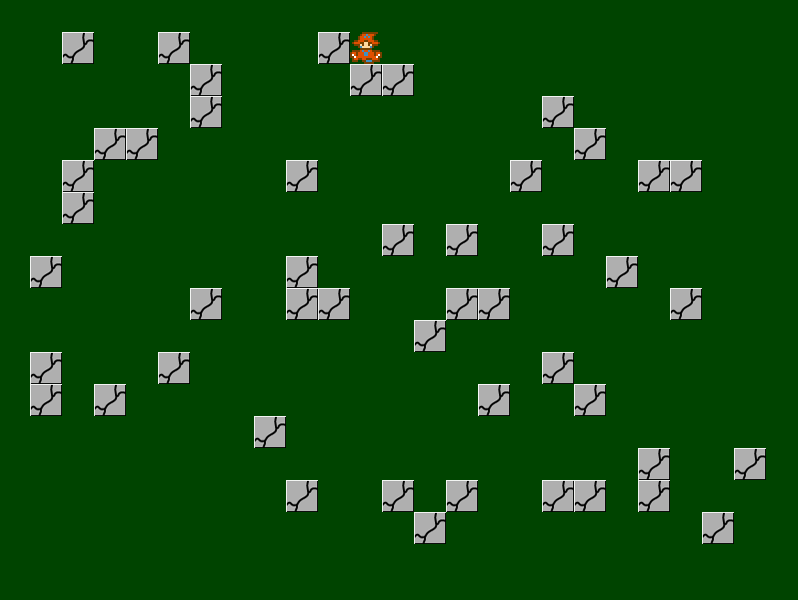
Here’s the link to the demo for this code.