I know I promised goodness gracious great balls of fire in part 5…but I changed my mind. I talked with a couple friends and they pointed out that it was a little annoying that the game was a fixed size and just sat there at 800×600 no matter how big they made the screen size / browser window. To remedy that, this post is going to be step through the process of implementing scaling into our context rendering. Fair warning, I have never done this with the HTML5 / JavaScript objects and haven’t even done it with DirectX for years now. This may not be the best way to do it! That having been said, this method seems to work for me in all the major desktop browsers I tried (Safari, Opera, IE 9, Firefox, Chrome) but if you know of a better way to do it, please let me know.
I’m going to assume that if you’re reading part 5 of the series you’ve already at least looked through part 1, part 2, part 3 and part 4. If you haven’t, I highly recommend you at least familiarize yourself with them somewhat or you may get lost. Then again, you may already know how to do this and just came to read my blog and mock me for the stupid decisions I make as I’m learning this stuff…I just made myself sad.
Back on topic now. The concept of scaling isn’t all that complicated in reality. What we want to do is tell the game that we want the resolution to be 800×600 but that we want that to stretch (or shrink) to fill all of the screen real estate the browser has available. Previously we had created two variables (gameW and gameH) that held the dimensions of our game and everything was driven off of those. In order to get our scaling working properly we are going to expand from those two variables up to eight different variables:
1 2 3 4 5 6 7 8 9 10 11 12 13 | // These are now going to hold the dimensions of the full game window (browser) var gameW = 0; var gameH = 0; // Add in these six variables to be able to track scaling for "fullscreen" // These are what we want the actual dimensions (resolution) of the game to be var baseW = 800; var baseH = 600; // These two will hold the rendered dimensions to be var renderW = 0; var renderH = 0; // These will hold the scale difference between our rendered dimension and the actual browser dimensions var scaleX = 1.0; var scaleY = 1.0; |
As you can see by the comments (go go comments) the gameW and gameH variables are now going to be holding the “true” dimensions of the game window (browser). The baseW and baseH variables are our static variables that tell the game what we want the resolution to be (feel free to change those around and see how things change later). Variables renderW and renderH are driven off of a comparison between the gameW/gameH and the baseW/baseH and will be used in our actual render methods for the objects being drawn to the screen. The scaleX and scaleY variables do just what you’d expect, they hold the scale ratio between what we want to show and what screen size we actual have.
There are a couple different ways I tried for doing this:
- Keeping it always at the base resolution and centering it in the browser — I didn’t go this route because it wasn’t really any improvement over doing nothing at all
- Maintaining a static aspect ratio and scaling to fill the window — this looks nicer, in my opinion, because the rendered objects are never stretched or squashed, but has the draw back of things not fitting properly if the window is resized to a different aspect ratio than at load time
- Not maintaining the aspect ratio and scaling to fill the window — this can cause objects to be squashed or stretched if the browser window is not of a size that keeps the 800×600 ratio, but things always fit properly on the screen
In the demo we’ll be implementing both 2 and 3 and providing a checkbox so you can toggle between the two methods. I’m not 100% sure which I like best of all, so I’ll wait and see if I get any feedback about which one other people like most and go forward with that one when we add the fireballs (I’m going to do my best to get that in part 6!).
As I mentioned at the start, we’ll be using the renderW and renderH variables for rendering out our objects. Because of this there are a couple changes we need to make. In each of our object methods we need to update the this.x and this.y assignments to use renderW/renderH instead of baseW/baseH. For the staticObject() we only need to change the assignment lines since it has no update method:
1 2 3 | // Change the positioning to reference the render height and width instead of the actual size this.x = this.width * Math.floor(Math.random() * ((renderW - this.width * 2) / this.width)) + this.width; this.y = this.height * Math.floor(Math.random() * ((renderH - this.height * 2) / this.height)) + this.height; |
In the heroObject() we’ll change the x/y assignments:
1 2 3 | // Change this to use the render height and width this.x = this.width * Math.floor(Math.random() * (renderW / this.width)); this.y = this.height * Math.floor(Math.random() * (renderH / this.height)); |
We also need to change the code in the update() method for the heroObject that handled wrapping around the screen:
1 2 3 4 5 6 7 8 9 10 11 12 13 14 15 16 17 18 | // This code handles wrapping the hero from one edge of the canvas to the other // Change these to use the render height and width if (this.x < -this.width) { this.x = renderW - this.width; } if (this.x >= renderW) { this.x = 0; } if (this.y < -this.height) { this.y = renderH - this.height; } if (this.y >= renderH) { this.y = 0; } |
Another change is required to our initRocks() function because we had the logic in place that calculated a new x/y position for each rock when there was a collision:
1 2 3 4 5 6 7 8 | // check to see if we have a collision between this rock and // the hero object, if so we generate new coordinates for the rock // change this to use the render dimensions while (hero.checkCollision(rocks[i])) { rocks[i].x = this.width * Math.floor(Math.random() * ((renderW - this.width * 2) / this.width)) + this.width; rocks[i].y = this.height * Math.floor(Math.random() * ((renderH - this.height * 2) / this.height)) + this.height; } |
And the final change is inside the gameLoop to our clearRect call
1 2 | // changed to reference the render dimensions context.clearRect(0, 0, renderW, renderH); |
The next bit of code we’ll put in will be a new function that will be used to calculate the values for the new variables we added at the top. I set this up to accept a parameter that determines whether or not we want to maintain the aspect ratio or not. If we want to maintain the aspect ratio then we take the following steps: determine what our current width-to-height ratio is, set our gameW and gameH, set our renderW and renderH using a ratio calculation to keep it constant, set our scaleX and scaleY to the same value since the ratio is being maintained. If we don’t care about maintaining the aspect ratio then our steps are simplified (and have no “real” logic): set our gameW and gameH, set our renderW and renderH to the baseW and baseH values, calculate our scaleX and scaleY values. The scaling function will look like this:
1 2 3 4 5 6 7 8 9 10 11 12 13 14 15 16 17 18 19 20 21 22 23 24 25 26 27 28 29 30 31 32 33 34 35 36 37 38 39 40 41 42 43 44 45 46 47 48 49 50 51 | function calculateScaling(maintainAR) { // Check if we want to maintain the aspect ratio // this "looks better" in that items won't be stretched or squashed // no matter how the screensize is adjusted // However, if the ratio changes during the resize, then we have // "empty space" or offscreen items if (maintainAR) { // check what the screens width to height ratio is var wtoh = $(document).width() / $(document).height(); // Make the canvas "fullscreen" gameW = $(document).width(); gameH = $(document).height(); // if we're greater than 1 then we are wider than we are tall // so we adjust our height based upon the width for proper scaling // otherwise we adjust our width based upon the height for proper scaling if (wtoh > 1) { renderW = baseW; renderH = Math.round(baseW / wtoh); } else { renderH = baseH; renderW = Math.round(baseH * wtoh); } // Calculate what our scaling ratios need to be // these ratios are the same for x and y because of // the above logic to adjust the base compared to the fullscreen scaleY = scaleX = gameW / renderW; } else { // Make the canvas "fullscreen" gameW = $(document).width(); gameH = $(document).height(); // If we aren't maintaining the aspect ratio, our render dimensions // are always the same as our base dimensions renderW = baseW; renderH = baseH; // Calculate what our scaling ratios need to be scaleX = gameW / renderW; scaleY = gameH / renderH; } } |
We’re going to need to adjust
1 2 3 4 5 6 | since we are absolutely positioning it: <pre class="lang:js decode:true"> <div id="debugDiv" style="position:absolute;top:0;left:0;z-index:200;font-weight:bold;color:White;"> <input type="checkbox" id="maintainAR" />Maintain Aspect Ratio </div> |
With that out of the way we’ll dive into the
1 2 3 4 5 6 7 8 9 10 11 12 13 14 15 16 17 18 19 20 21 22 23 24 25 26 27 28 29 | will look like this: <pre class="lang:js decode:true"> $(window).load(function() { // calculate the scaling values, based upon whether the check box on the screen //is checked or not calculateScaling($("#maintainAR").is(':checked')); initCanvas(); // Save out the context information // we do this so on resize events we can restore to undo // this scaling before applying the new scaling baseContext.save(); context.save(); // Apply the scaling values to the context objects baseContext.scale(scaleX, scaleY); context.scale(scaleX, scaleY); initHero(); initRocks(); initEnemies(); lastUpdate = Date.now(); // call the gameLoop as fast as possible setInterval(gameLoop, 1); }); |
At this point you should be able to run the game and see it fill the entire screen, stretching / squashing the objects as needed to do so. You’ll most likely notice that resizing the window has no effect. That’s easy enough to fix by hooking to the window resize event, but there are a couple things that could end up biting us in the patootie if we don’t watch out. We don’t want the resize event to reinitialize everything, because then our hero, enemies and rocks will all be regenerated and positioned differently on the screen. We’ll create a new function to handle resizing that will do the following: recalculate the scaling, reset our canvas width and height, clear our the context objects, restore to the saved context information, re-apply our scaling and re-render all of the objects. We will not reinitialize anything entirely because we want to keep the same objects we had prior to resizing:
1 2 3 4 5 6 7 8 9 10 11 12 13 14 15 16 17 18 19 20 21 22 23 24 25 26 27 28 29 30 31 32 33 34 35 36 37 38 39 40 41 42 43 44 45 46 | function handleResize() { // During our resize event we're going to change the width and height of the canvas // we hide them before we scale in order to get the true document size // We could use the window dimensions but I've been getting some weird results with that $("#mainCanvas").hide(); $("#baseCanvas").hide(); calculateScaling($("#maintainAR").is(':checked')); $("#mainCanvas").show(); $("#baseCanvas").show(); // set the width and height of the canvas canvas.width = gameW; canvas.height = gameH; // set the width and height of the baseCanvas baseCanvas.width = gameW; baseCanvas.height = gameH; // tell the baseContext we are going to use a dark green fill color baseContext.fillStyle = "#004400"; // fill the entire baseContext with the color baseContext.fillRect(0, 0, gameW, gameH); context.clearRect(0, 0, gameW, gameH); // Restore the original context information baseContext.restore(); context.restore(); // Apply the new scaling values to the context objects baseContext.scale(scaleX, scaleY); context.scale(scaleX, scaleY); // We have to re-render all our objects now that the scaling has changed for (var curRock in rocks) { rocks[curRock].render(); } for (var curEnemy in enemies) { enemies[curEnemy].render(); } hero.render(); } |
Initially, I just wired the call to this function directly into the window resize event…that ended up not being the best idea. Firefox and Chrome (maybe others) trigger the resize event constantly while the window is resizing and cause a lot of extra calculations to be done if we call the resizeHandler directly from the event. Instead I created a simple customTimeout function that we can use to simulate a “resizeComplete” event. The customTimeout will make use of a timer object and the base setTimeout function to accomplish our goals:
1 2 3 4 5 6 7 8 9 10 11 12 13 | // Created this because chrome and firefox call the window resize // event constantly while it is being resized, this allows us to simulate // an "resizeComplete" type event var customTimeout = (function() { var timer = 42; return function(callback, wait) { clearTimeout(timer); timer = setTimeout(callback, wait); }; })(); |
Now to wire that up to the resize event we use a single line of jQuery
1 | $(window).resize(function() { customTimeout(handleResize, 500); }); |
Voila, we have a “fullscreen” game that will adjust and resize the objects as the browser window is resized. Pressing F11 and going into fullscreen mode with your browser should cause the game to truly be fullscreen, but any resize should work as well (even making it really tiny).
Hopefully I managed to have this all make sense and didn’t do anything incredibly stupid. If I did, please don’t hesitate to let me know and I’ll update the post accordingly. Here’s what we should have at this point (I resized the window down to a fairly small size):
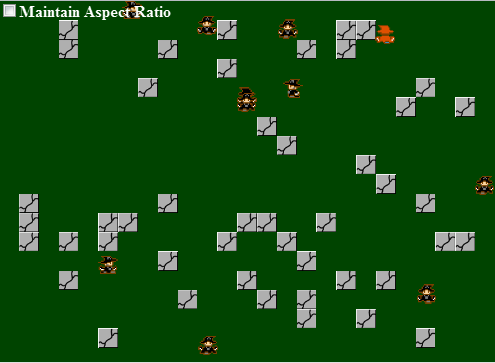
Here’s the link to the demo for this code.